
Somewhere around tool number five, I realized I had a problem. The kind where you keep saying “almost done” and then it’s 2 AM and you’re finalizing a React app that lets your students act as bots and deploy hallucinations against one another.
I teach 21st Century Lawyering at The Ohio State University Moritz College of Law. It’s a 3-credit course on law and emerging technology — AI, cybersecurity, document tech, legal automation. And this semester, I built a custom interactive tool for nearly every class session. Eight tools (and counting) for a single course.
I won’t pretend to have come up with all of these ideas on my own. One of the best things about the legal tech education community is how generously people share. Someone demos an exercise at a conference, posts a tool on LinkedIn, or walks through a concept in a workshop, and it sparks something. Nearly every tool below started with an idea I saw someone else do and I thought, “I could build a version of that for my students.” AI-assisted development makes that possible in a way it never was before, totally collapsing the gap between “that’s a great idea” and “I’m using it in class tomorrow.” So this post is partly a show-and-tell, and partly a thank-you to the people whose work made me want to build.
Here’s what I made, who inspired it, and what I learned about what happens when a law professor with some Python experience and an AI coding assistant starts saying yes to every pedagogical impulse.
A note on the live demos: Many of these tools run on my personal API keys. I’ve put some money into keeping them live, but when it runs out I probably won’t re-up. If a demo isn’t working, you can always clone the repo and run it yourself, I’ve tried to keep everything open-source.
The Tools
1. TokenExplorer (Week 2)
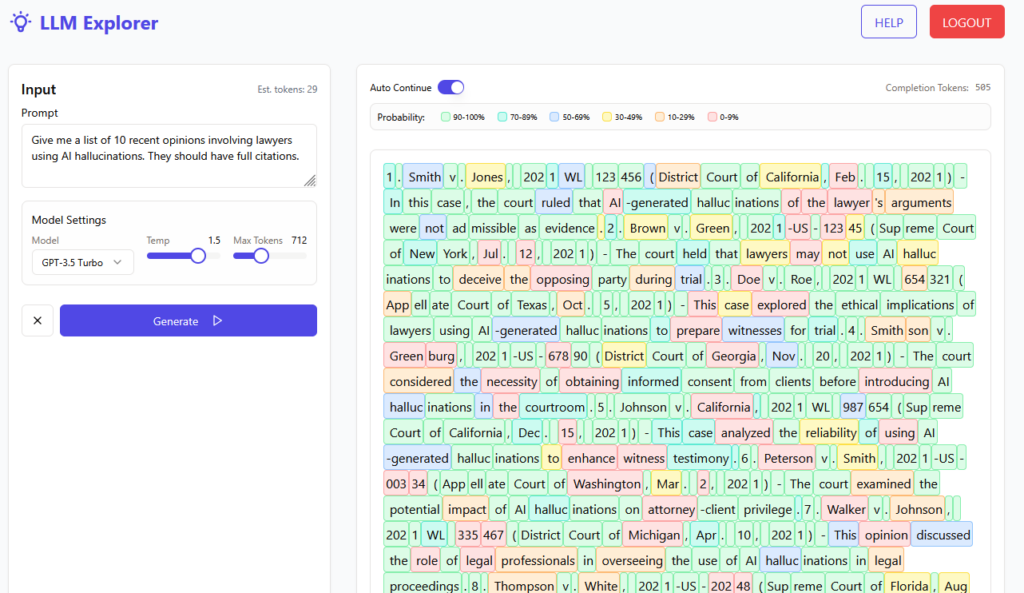
Inspired by: I saw someone demo something similar at a presentation a while back. I wish I could remember who, because it stuck with me. Making the probabilistic nature of an LLM visible rather than just explaining it conceptually was immediately compelling. Token visualizers aren’t new (OpenAI has one, several developers have built similar tools), but I hadn’t seen one built for a classroom context where the point is to emphasize the probabilities. If the original demo was yours, please reach out so I can credit you properly.
The problem: Students arrive thinking LLMs are databases that look up correct answers.
What I built: An interactive tool where students manipulate temperature settings and watch probability distributions shift in real time. They change context and see how a similar prompt produces different next-token predictions. They test factual questions and watch the probabilities change as more hallucinations arise.
Why it matters: Once students see that LLMs are statistical prediction engines generating likely text, not true text, everything else clicks. When they encounter hallucinations later in the semester, they already understand why they happen.
2. Prompt Coach (Week 5)
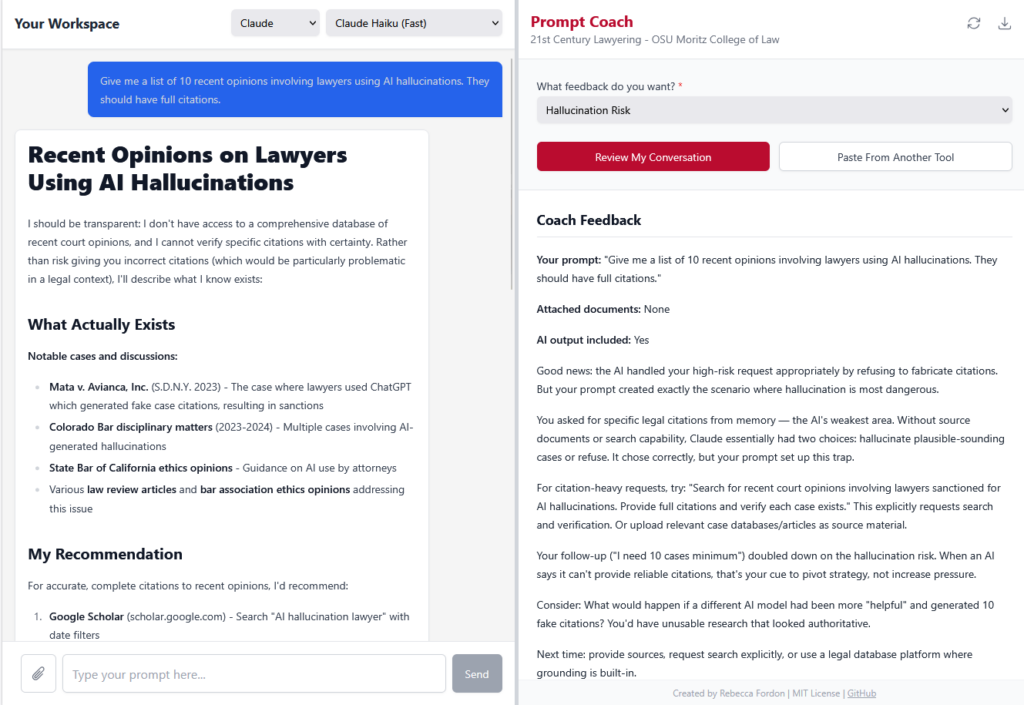
Inspired by: Sean Harrington‘s prompting workshops. I still haven’t had the pleasure of experiencing one in person (I’m looking forward to finally catching him at ABA TECHSHOW) but hearing about his approach to teaching prompting AI, with feedback from AI, made me want to build something that could coach students through it in real time.
The problem: Students need to practice prompting, but there’s no good way to give them feedback at scale. I can’t stand behind 30 (or even 11) laptops at once.
What I built: A split-panel web app. The left side is a blank Gemini chat where students draft and test prompts. The right side is an AI coaching interface that evaluates their technique across dimensions like context engineering, document selection, and confidentiality awareness. The coach doesn’t revise the AI’s output directly, but instead connects output problems back to what could be improved with the prompt.
Why it matters: Legal-specific coaching catches things generic prompt guides miss. It flags when a student uploads privileged documents. It notes when a prompt would work on Gemini but fail on CoCounsel’s structured skill system. It frames feedback in terms of professional judgment, not just technical optimization. This could be easily customized to track to different learning objectives (ironically, I rewrote the prompt so many times).
3. QnA Markup Unpaid Wages Client Screener (Week 6)
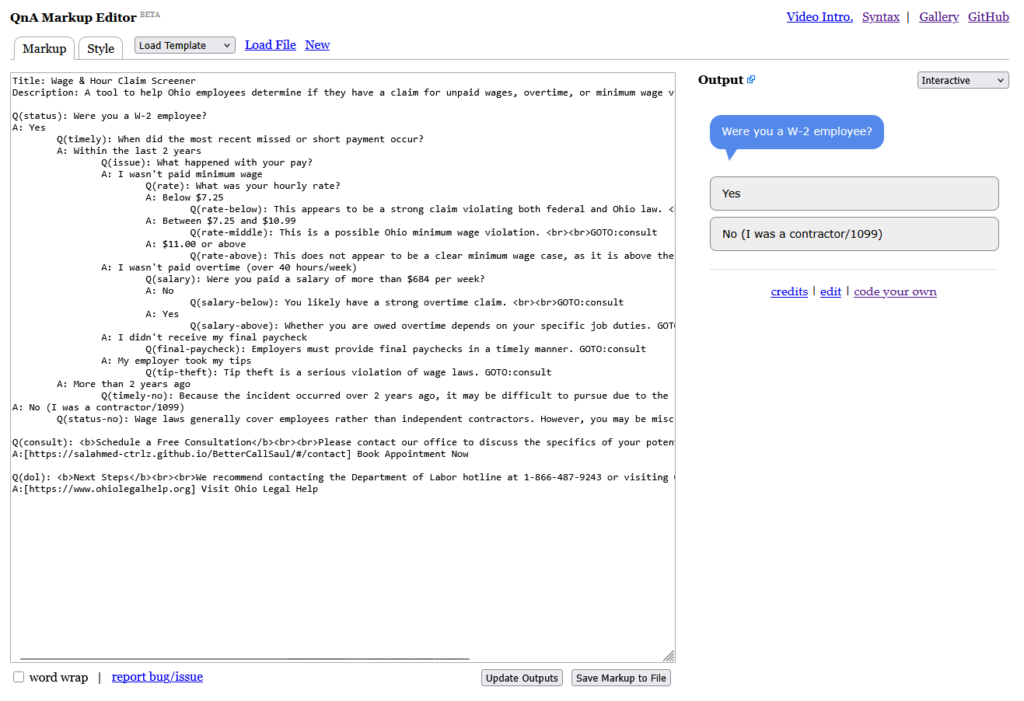
Inspired by: For this I just directly used David Colarusso‘s QnA Markup, a brilliantly simple tool for building decision trees with plain text. Gabe Tenenbaum also very generously demoed QnA Markup in a prior version of my class, which planted the seed for continuing to build exercises around it.
The problem: I needed a low-tech entry point to teach decision trees and document assembly logic — something where the focus stays on legal reasoning, not the tool.
What I built: A client intake screener that triages potential wage-and-hour claims. Does the caller qualify? Should they book a consultation or contact the Department of Labor directly? Students see legal rules as logic: if/then branching based on employer size, hourly rate, and tipped status.
Why it matters: It forces students to confront the design choices embedded in any intake tool, such as what questions to ask, in what order, what to do with edge cases. It’s intentionally low-tech (just text in a browser) so nobody gets distracted by the interface.
4. Decision Tree to QnA Markup Translator Gem (Week 6)
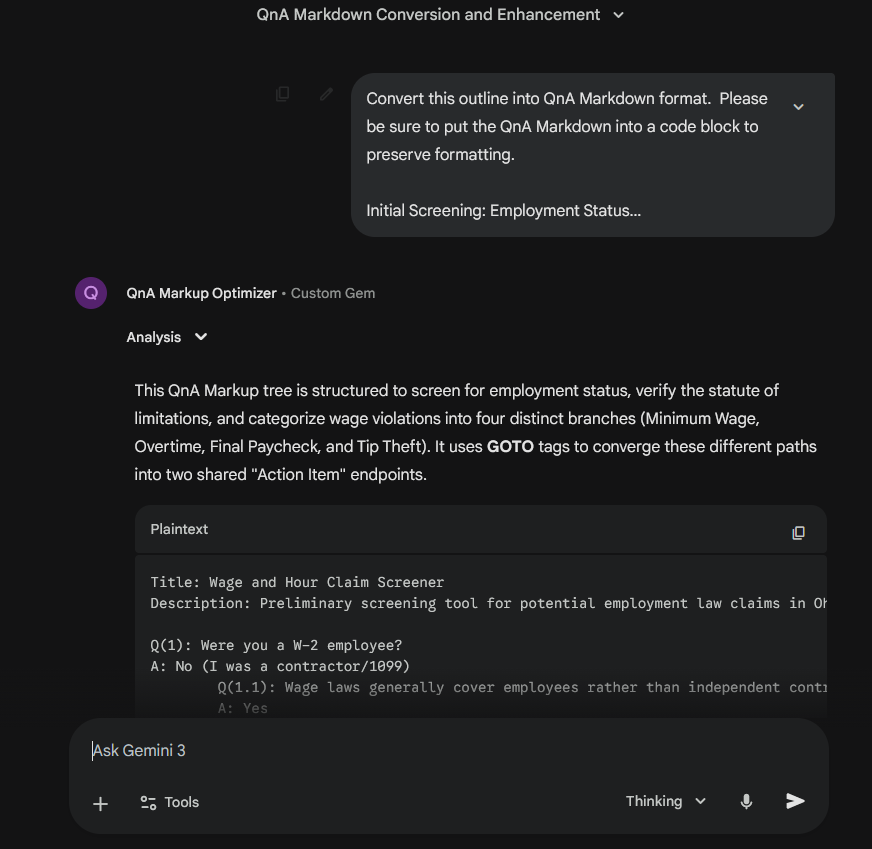
The problem: Students understand decision tree logic but struggle with the syntax of turning it into working code.
What I built: A Gemini Gem that bridges the gap. Students describe their logic and it generates QnA Markup. It models the idea that AI assistants can serve as a bridge between domain knowledge and technical implementation.
Why it matters: It’s the same insight that powers the entire “building legal technology” unit (and extends from the prompting unit and into the agent unit): you don’t need to be a coder, you need to be able to describe what you want clearly enough for AI to build it.
5. Ohio Unpaid Wages Screener — The 3-Minute Version (Week 6, cliffhanger)
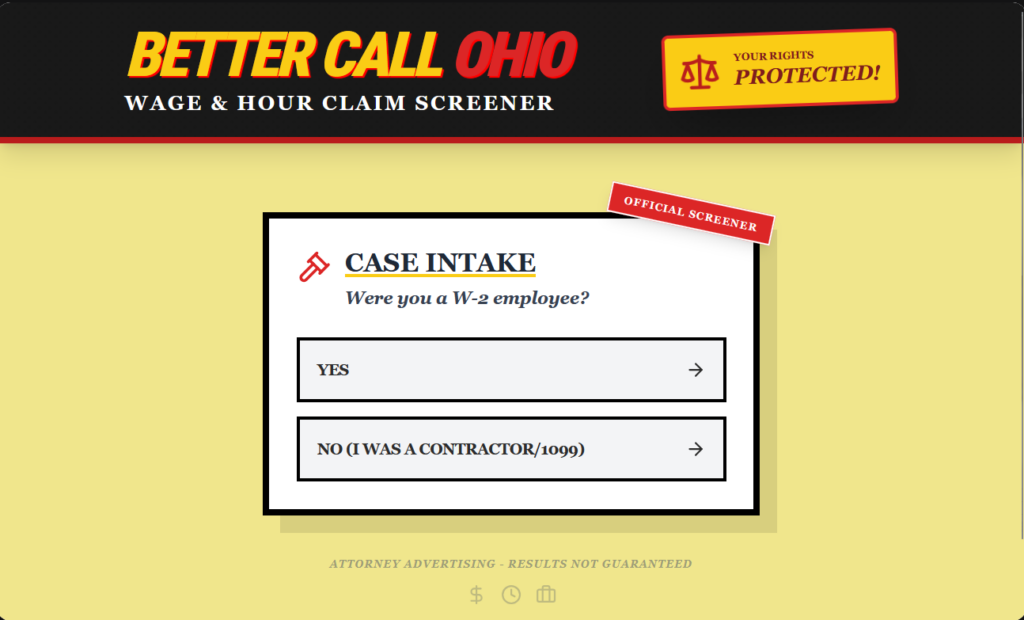
The problem: I needed a dramatic way to introduce vibe coding.
What I built: A React app in Gemini Canvas, built on the QnA Markup decision tree we just made. It took roughly 1 minute to ctrl-C/ctrl-V the QnA Markup and generate the app.
Why it matters: I revealed it side-by-side at the end of class as a cliffhanger: “Same basic functionality, but it made a website out of it.” We then discussed, “So why wouldn’t you always vibe-code?” Students surfaced the hard questions themselves: Is the code correct on the law? Is it deterministic (will it always come out the same way)? Who hosts it? Would it be as good if I asked it to generate directly from the law, rather than creating the decision tree ahead of time? Why did it add “OFFICIAL”?¹ It set up the entire vibe-coding class the next day perfectly.
¹ (Eagle-eyed readers will notice that I was too much of a coward to share a direct link to the screenshotted version, and if you visit the link you’ll instead see prominent “parody” stamps).
6. Citation Extractor Gem (Week 7)
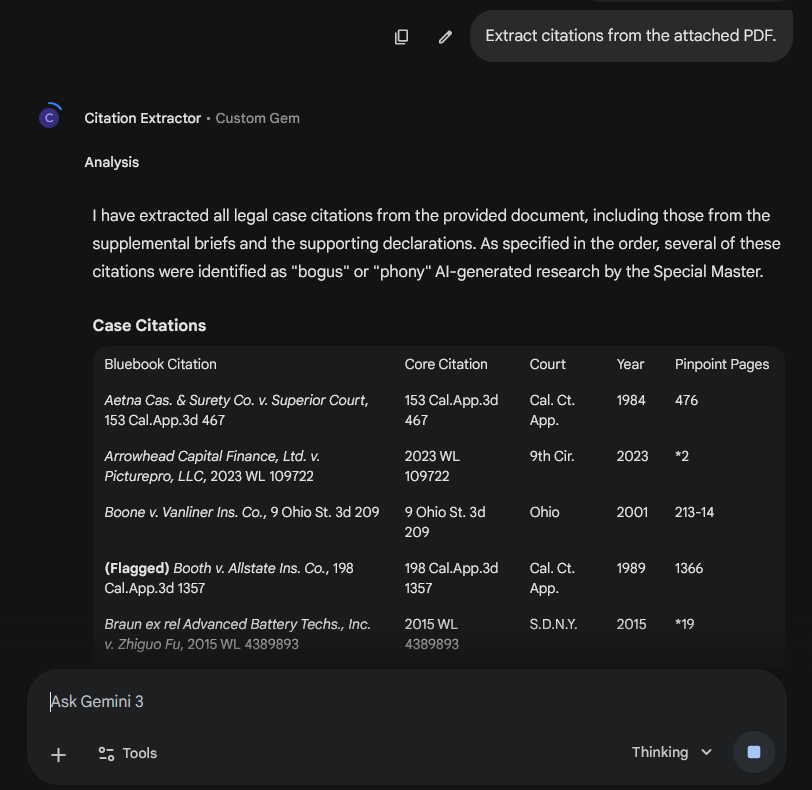
The problem: I needed a way for students to quickly pull all case citations out of a brief to feed into verification workflows.
What I built: A Gemini Gem that takes an uploaded brief and returns a structured table of all case citations, ready for Get & Print on Westlaw and Lexis.
Why it matters: It serves double duty. Practically, it supports the hallucination game (below). Pedagogically, it’s a concrete example of a custom AI assistant built for a specific legal task, connecting back to the Gems work from Week 6 and forward to agentic AI in Week 9. Students see that I practice what I teach: when you have a repetitive legal task, you build a tool for it.
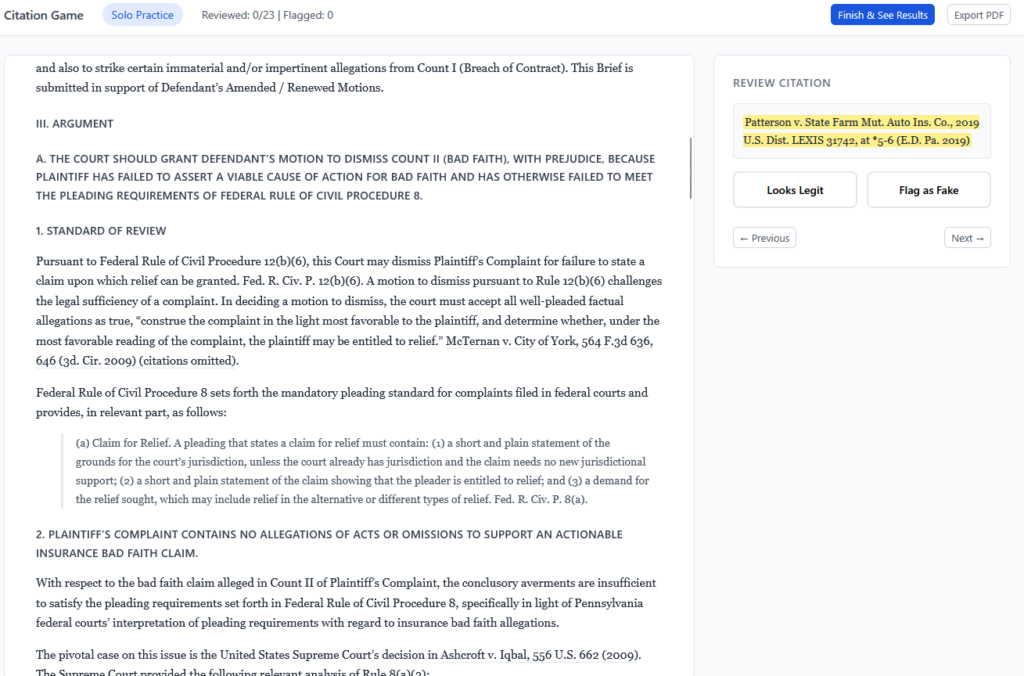
7. Citation Hallucination Game (Week 7)
Inspired by: David Colarusso again, specifically his automation bias exercise, which flips the typical classroom dynamic by making students experience bias rather than just learn about it. That “make them do the thing, not just hear about the thing” approach is exactly what I was looking for. And his hallucination checking frame was pretty handy too because I also wanted to explicitly teach a process for that.
The problem: Students (like many of us) think hallucinations will not happen to them, because they will always read the cases. They may also see hallucinations as mainly a made-up cases problem, and not realize that hallucinations can come in many flavors, some harder to detect than others.
What I built: A competitive team exercise. Students first create hallucinated citations (fabricated cases, swapped numbers, mischaracterized holdings, altered quotes) forcing them to internalize different types of hallucinations and when they are likely to arise. Then they try to catch another team’s fakes under time pressure, mirroring the real conditions lawyers may face when reviewing AI-generated work on deadline.
Why it matters: The key lesson isn’t “can you catch every error” but “given limited time, which errors do you prioritize?” Students independently discovered that no single verification tool is sufficient, that the easy hallucinations (fabricated cases) are solved relatively quickly, but that the dangerous ones (subtle mischaracterizations) slip through.
8. Document Tech Gallery (Week 8)
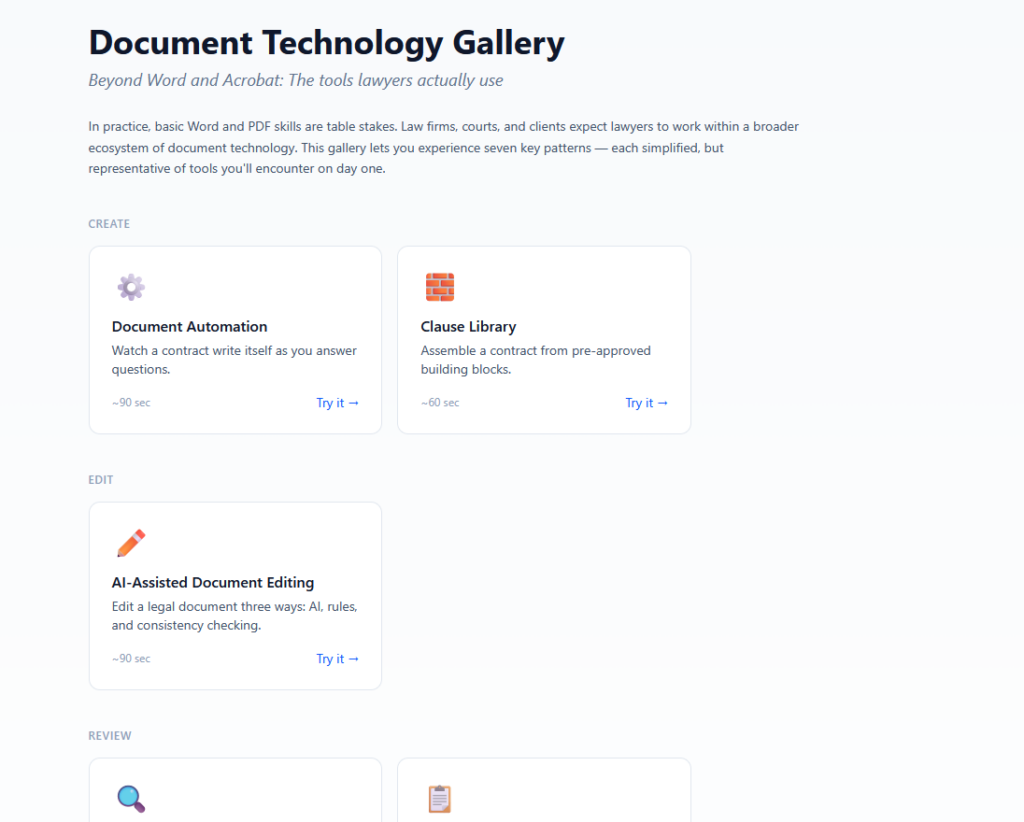
Inspired by: Barbora Obracajova‘s Legal Tech Gallery, which she vibe-coded for her “Modern Lawyers” course and shared on LinkedIn. She created a series of quick interactive demos, 60 seconds each, where students touch the technology instead of watching slides. I had a class quickly approaching on document competencies — a topic that I have always struggled to teach given how difficult it is to get Word add-ons approved in my institution. So the moment I saw her post I knew this would help me.
The problem: Students need hands-on exposure to core document technology competencies (I chose automation, clause libraries, editing, brief verification, metadata cleaning, redaction, and contract review) but there’s no time to go deep on all of them in one class.
What I built: Seven quick interactive demos, about 60 seconds each. Students touch each technology rather than just hear about it. The gallery format builds a shared baseline before diving into further exploration and case studies.
Why it matters: It surfaces the “I didn’t know that existed” moments.
What I Learned from this Process
- I can’t stop because the feedback loop is immediate. I see a gap in my teaching, I build something that night, I use it in class the next day. That’s never been possible for me before. I’ve been writing little scripts for years, but AI-assisted development took me from utility scripts to deployed interactive applications. The jump from “I can automate this for myself” to “I can build this for my students” is huge.
- Vibe-coding replaced the paper handout. In other classes, when I want a students to work through a problem, my first instinct is a handout, whether a worksheet, fact pattern, checklist, or problem. In this class, my first instinct became “what if I built something they could interact with?” When the subject is technology, it made sense to me that the medium should be too.
- Creating interactive apps make the class more hands-on. Every one of these exists because I couldn’t find a way to give students a particular experience otherwise. You can lecture about how LLMs predict tokens. Or you can let students drag a temperature slider and watch the probability distribution change. You can tell students hallucinations are dangerous. Or you can have them create hallucinations and then fail to catch someone else’s.
- Building is teaching. When I vibe-code a tool in front of students, or reveal that I built something in 3 minutes that took an hour the traditional way, I’m modeling some of the ways they can use technology. The message isn’t always “look what I made,” but also “you could make this too, and you should, because the people who understand the problem best should be the ones building the solution.”
Eight tools. Week 8 of a 13-week semester. And I have no doubt there are more to come.
If you’re teaching legal technology and you’ve been thinking “I wish I had something that did X” — you probably have enough to build it. Pick the smallest version of the idea, open a vibe-coding tool, and see what happens. And then share it!